
If Waybar not launching is creating problems on your Linux desktop, you are not alone. Many users run into this issue after changing a config file, switching a Wayland session, installing new modules, or updating their system. Since Waybar is an important part of many Wayland compositor setups, the problem can make your desktop feel broken right away.
Waybar is widely used as a Linux status bar for environments like Hyprland and Sway. It helps users manage workspaces, monitor battery life, view system usage, and control audio or network settings. When it stops working, the cause is usually something simple like a bad config, missing dependency, session mismatch, or startup command issue. This guide explains each fix step by step in an easy way.
What Is Waybar in Linux?
Waybar is a flexible and lightweight status bar for Wayland. It is commonly used with tiling window managers and compositors such as Sway, Hyprland, River, and Wayfire. Many Linux users prefer it because it supports custom modules, theme styling, workspace tracking, and system information in one clean bar.
You can customize Waybar to show the clock, CPU usage, memory, battery, network, audio, and more. This is one reason it is so popular in Linux desktop customization. Still, that same flexibility can lead to problems. A small error in the Waybar config or style file can stop the whole bar from launching.
Why Waybar Is Not Launching
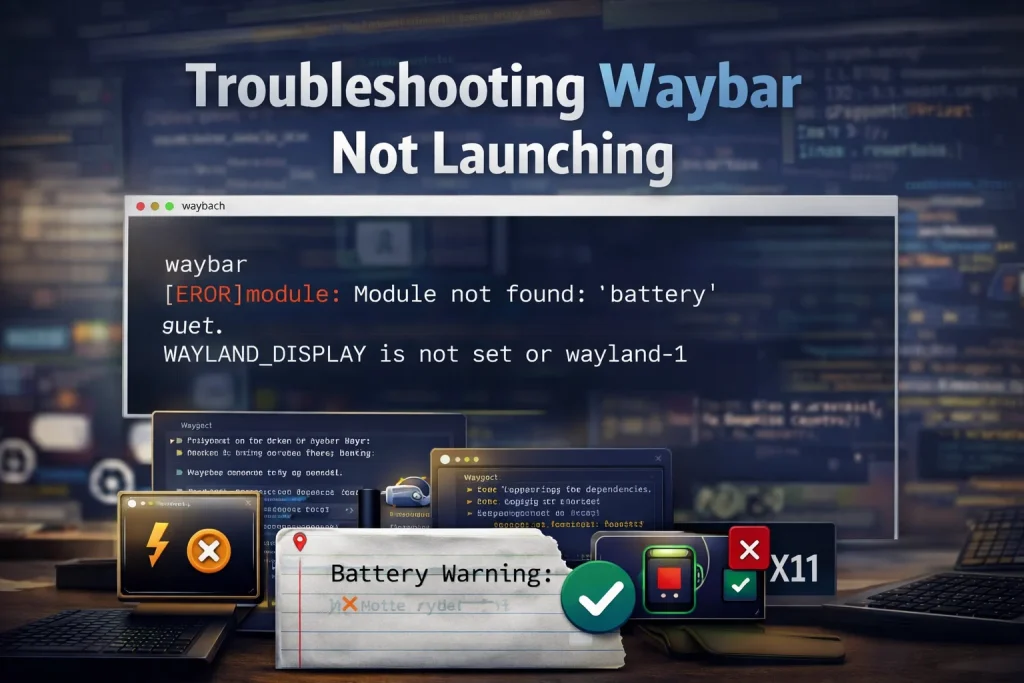
When users search for Waybar not launching, they are usually dealing with one of several common issues. The bar may not appear after login, the terminal may return an error, or Waybar may start and then close immediately. In most cases, the issue is not with Linux itself. It is usually with the setup around Waybar.
The most common causes include a broken Waybar config file, missing packages, incorrect startup settings, permission issues, or running the wrong session type. Since Waybar is built for Wayland compositors, it may fail if you are using X11 instead of Wayland. Some users also face issues because of missing fonts, custom scripts, or invalid module names.
Step 1: Check If Waybar Is Installed Correctly
Before looking deeper, make sure Waybar is installed properly on your system. A missing or incomplete installation can cause Waybar to fail before it even reads the config.
Run This Command
waybar --version
If the command returns a version number, Waybar is installed. If the command is not found, install it first.
Ubuntu or Debian
sudo apt update
sudo apt install waybar
Arch Linux
sudo pacman -S waybar
Fedora
sudo dnf install waybar
Once Waybar is installed, check the version again. Then move to the next step.
Step 2: Run Waybar From the Terminal
This is one of the best ways to find the real problem. Instead of guessing, start Waybar manually and look at the terminal output.
Run This Command
waybar
If Waybar fails, the terminal usually shows the exact error. This is useful because many Waybar errors point directly to the broken part of your setup.
You may see messages related to config file parsing, module failures, missing fonts, missing scripts, or Wayland display issues. These terminal messages are often the fastest path to a fix.
Step 3: Check the Waybar Config File
A broken config is one of the most common reasons for Waybar troubleshooting on Linux. If you recently changed modules, edited the layout, or installed a theme from another source, the config may be the issue.
Common File Locations
~/.config/waybar/config
~/.config/waybar/style.css
The config file controls modules, positions, and structure. The style file controls the look of your Linux bar. If either one has a problem, Waybar may refuse to start.
Common Config Problems
A broken config file often includes missing commas, incorrect brackets, wrong module names, or bad formatting. If you added a custom script or copied a theme from GitHub, that config may depend on packages or paths that do not exist on your system.
Restore the Default Config
mkdir -p ~/.config/waybar
cp /etc/xdg/waybar/config ~/.config/waybar/
cp /etc/xdg/waybar/style.css ~/.config/waybar/
Now run Waybar again:
waybar
If it starts with the default files, your custom config was the problem.
Step 4: Confirm You Are Using a Wayland Session
Waybar is made for Wayland, not traditional X11 sessions. That is why checking the session type matters so much.
Run This Command
echo $XDG_SESSION_TYPE
If the output says wayland, your environment supports Waybar correctly. If it says x11, that may explain why the bar is not showing.
This step is especially important for users working with Hyprland setup or Sway configuration, since both rely on Wayland. If you are not in a Wayland session, Waybar may not work as expected.
Step 5: Install Missing Dependencies
Sometimes Waybar itself is installed, but the supporting tools are missing. This is common when modules use icons, media controls, JSON output, or external scripts.
Common Missing Packages
Waybar may need tools like Font Awesome, jq, playerctl, PulseAudio helpers, or PipeWire-related packages depending on your modules. If those tools are missing, modules may break and cause startup problems.
Ubuntu or Debian
sudo apt install fonts-font-awesome jq playerctl
Arch Linux
sudo pacman -S ttf-font-awesome jq playerctl
Installing these tools can solve many Waybar setup issues, especially when using media, network, or custom script modules.
Step 6: Check Waybar Modules and Custom Scripts
Many users customize their Waybar modules for weather, updates, audio, VPN, temperature, and more. These modules can be useful, but they also create more chances for failure.
If a module points to a missing script, an invalid command, or a package that is not installed, Waybar may not launch properly. A custom script should exist, have the right path, and be executable.
Fix Script Permissions
chmod +x /path/to/script.sh
If you suspect a custom module is the problem, remove it from the config for a moment and launch Waybar again. Then add modules back one at a time. That makes the faulty one easier to find.
Step 7: Fix Startup Issues in Hyprland or Sway
If Waybar works when launched manually but does not appear after login, the problem is likely in your startup configuration.
For Sway
Open your config file:
~/.config/sway/config
Add this line:
exec waybar
For Hyprland
Open your config file:
~/.config/hypr/hyprland.conf
Add this line:
exec-once = waybar
A missing startup command is a very common cause of Waybar not launching after reboot or login.
Step 8: Check Permissions and File Access
In some cases, Waybar can see the config folder but cannot use certain files correctly. This happens more often when files were copied from another user account, downloaded from a repository, or moved with root permissions.
Fix Folder Permissions
chmod -R 755 ~/.config/waybar
This helps ensure Waybar can read config files and run local scripts properly.
Step 9: Restart Waybar Properly
After making changes, restart Waybar so the new config loads cleanly.
Restart Command
pkill waybar && waybar
This closes the current process and starts a fresh one. It is a simple way to test whether your latest changes solved the issue.
Common Waybar Error Messages
Understanding the error message can save a lot of time. Many Waybar troubleshooting cases become easy once you read the terminal output carefully.
Config File Not Found
Waybar cannot locate its config or style file. Copy the default files into the correct directory.
JSON Parse Error
The config file has invalid structure. Check commas, arrays, module names, and braces.
Failed to Connect to Wayland Display
This usually means the system is not in a proper Wayland session.
Module Not Found
One of the declared Waybar modules is invalid or unsupported on your setup.
Common Mistakes Linux Users Make
A lot of users try to fix everything at once. That usually makes the process harder. The smarter approach is to test one thing at a time and check terminal output after every change.
Another common mistake is using random config files from the internet without checking dependencies. Many beautiful themes require extra fonts, scripts, package managers, or compositor-specific settings. If those are missing, your Waybar config may fail even though the file looks correct.
Frequently Asked Questions
Why is Waybar not launching on my Linux system?
If Waybar is not launching, the issue is usually a broken config file, missing dependencies, or incorrect startup settings. Many users also face this problem when they are not using a proper Wayland session like Sway or Hyprland.
Does Waybar work on X11 or only Wayland?
Waybar is designed for Wayland compositors such as Sway and Hyprland. It does not work properly on X11. If your system is running on X11, Waybar may fail to launch or not display at all.
How do I fix Waybar config file errors?
To fix Waybar config errors, check your config file for missing commas, wrong brackets, or invalid module names. You can also reset the config by copying the default file from /etc/xdg/waybar/ and then testing it again.
How can I check why Waybar is not working?
The easiest way to debug Waybar issues is to run it in the terminal:
This will show error messages like config problems, missing modules, or dependency issues. These messages help you quickly identify the root cause.
What dependencies are required for Waybar?
Waybar depends on tools like Font Awesome, jq, and playerctl for proper functionality. If these are missing, some modules may fail and stop Waybar from launching correctly on your Linux system.
Why does Waybar work manually but not after login?
If Waybar works when you run it manually but not after login, the issue is usually with the startup configuration. You need to add Waybar to your compositor config, such as exec waybar in Sway or exec-once = waybar in Hyprland.
Can a broken module stop Waybar from launching?
Yes, a broken or invalid Waybar module can stop the entire bar from launching. This can happen if the module uses a missing script, wrong path, or unsupported feature.
What is the most common reason for Waybar not launching?
The most common reason is a broken config file. Even a small formatting error can prevent Waybar from starting. Other common causes include missing dependencies and incorrect Wayland session setup.
Conclusion
If Waybar not launching is affecting your Linux desktop, the issue is usually tied to config errors, missing dependencies, startup settings, or the wrong session type. The best fix is to check each part slowly and in order. Start with the terminal, test the config, confirm Wayland, and then review your modules and startup commands.
A semantically strong blog should not only repeat one keyword. It should also cover related ideas like Linux status bar, Waybar error, Waybar modules, Hyprland, Sway, Wayland compositor, and Waybar troubleshooting. That makes the content more useful, more complete, and more likely to rank for related searches.